Pack an Order Controls
Pack an Order publishes a compact PC control list in its Roblox description. The inputs are not separate for every warehouse action: E or Left Click handles both picking up and packing, while the other controls manage the order board, the items in your hands, and inspection. Learn the pairs together so that a ticket, an item, and a box stay connected during a fast run. The value is not faster button pressing; it is fewer uncertain handoffs reliably.
- E / Left Click
- Pick up or pack an item
- Q
- Drop an item
- R
- Cycle customer orders
- Scroll Wheel
- Cycle carried items
- Right Click / Y
- Inspect an item
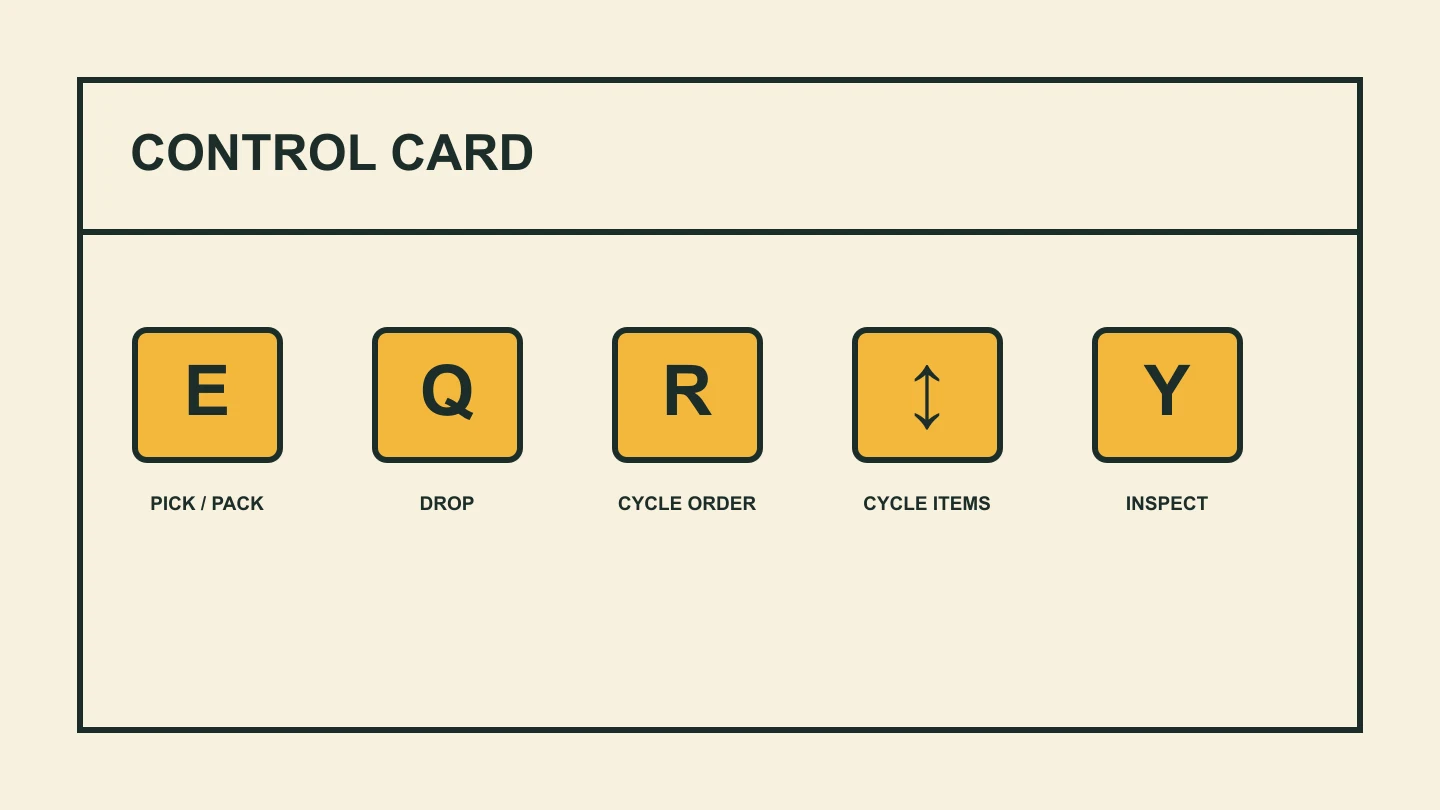
Official PC control list
E or Left Click picks up an item and also packs an item. Q drops an item. R cycles customer orders. Scroll Wheel cycles the carried items. Right Click or Y inspects an item. These are the controls published by the Roblox experience itself, so they are the best starting point when a community control graphic disagrees with what you see in game.
The overlapping pickup and pack input is important. It means the action depends on what you are facing and carrying, not on a separate keyboard mode. Slow down at the packing station when you are new: use inspection if the item is not obvious, select the correct carried item with Scroll Wheel, then use the same pickup/pack action only after the order is clear.
The fastest way to remember the list is to group it by decision. R chooses the customer-order context. E or Left Click acts on the world. Scroll Wheel chooses the item in your carried set. Right Click or Y checks that item. Q removes an item from the plan. This grouping is easier to recall during a timed run than a row of isolated key labels.
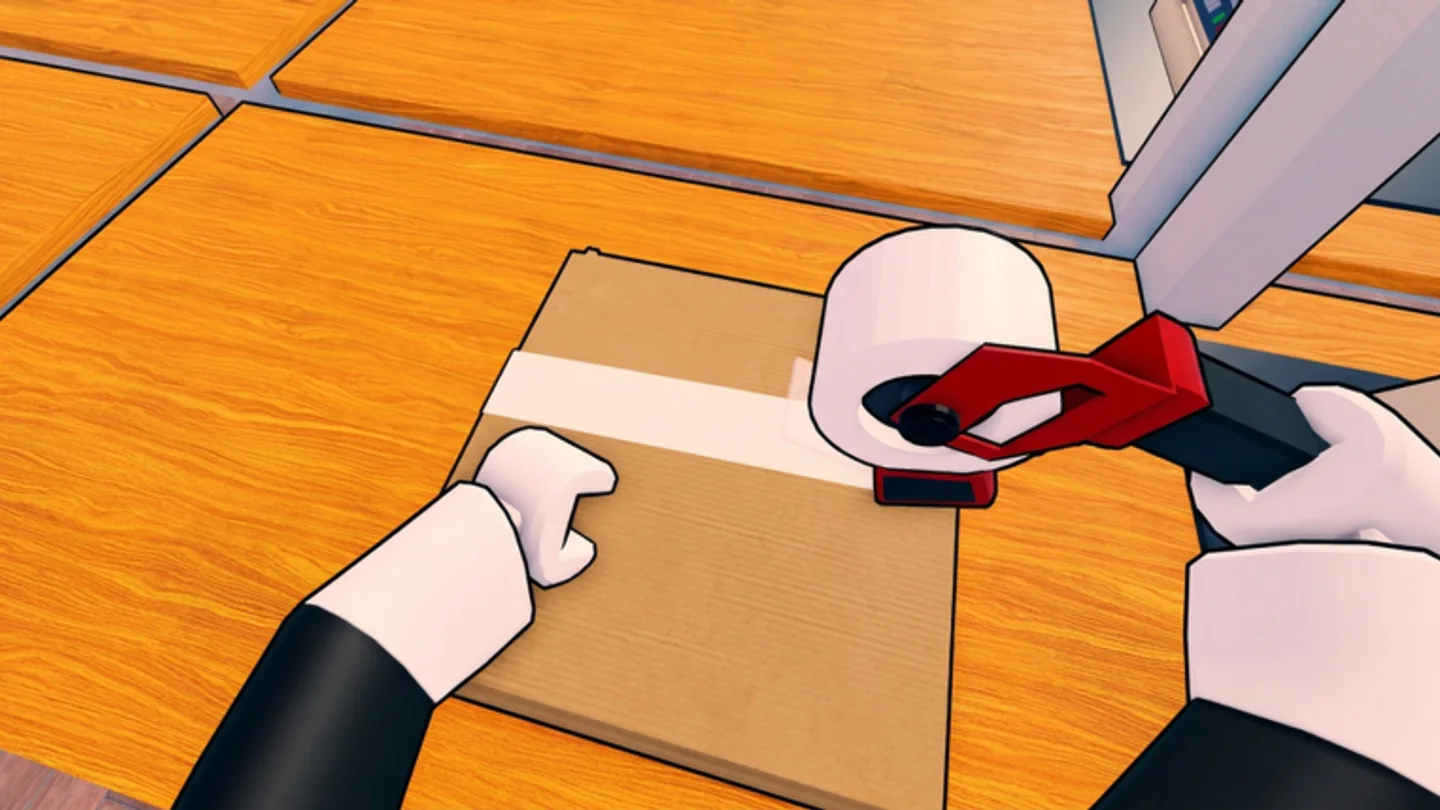
Use R to keep the active ticket useful
R cycles customer orders. In a busy run, cycling is not just menu navigation; it lets you compare the task in front of you with the shelves or items you are currently near. Before crossing the warehouse, cycle once and confirm which order you intend to finish. That keeps the route intentional instead of turning into a collection of loose toys and half-remembered requests.
If you play with a crew, say which order you are handling before you leave the packing area. The game supports solo play or friends, but the ticket is still the shared coordination object. A teammate can cover a different order or station when everyone has a clear reference rather than guessing from the items another player carries.
Cycling orders is also a chance to decide what not to do. If a different ticket would force you to abandon a nearly completed box or collect a toy you cannot describe, stay with the current delivery. The game’s public control list confirms that you can cycle; it does not require every ticket to be worked on simultaneously. Intentional focus keeps the packing floor readable.
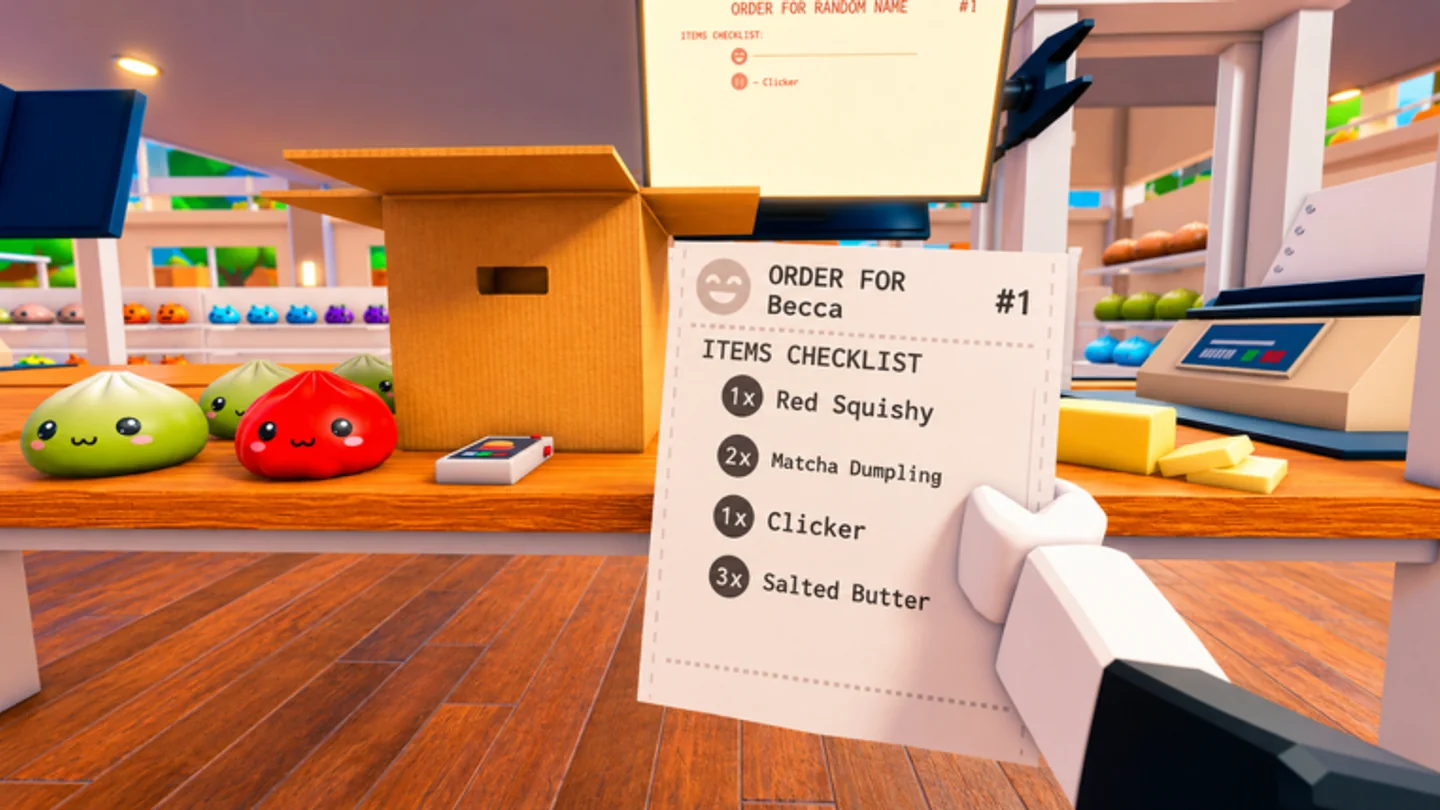
Cycle and inspect before packing
Scroll Wheel cycles carried items, which is especially useful once Carry Capacity lets you bring back more than one toy. Do not assume the most recently picked item is the one you will pack next. Cycle deliberately, use Right Click or Y to inspect when the item is uncertain, and match it to the currently selected order before committing to the box.
Q is the clean way to drop an item. Use it when you have picked up something for the wrong ticket or no longer want to carry it. A controlled drop is faster than allowing an incorrect item to travel all the way to the packing station, where it can interrupt the final check and create another trip through the shelves.
Do not confuse “carried” with “ready to pack.” Carrying is a temporary state; the ticket decides whether an item belongs to the delivery, the scroll control makes it active, and inspection can verify it. Treat that sequence as a small pre-pack checklist. It is especially helpful after a busy shelf run, when several objects may have entered your inventory quickly.
Build muscle memory without skipping the ticket
Use a simple practice rhythm when the controls still feel new. Start with one customer order, move to a shelf, pick an item with E or Left Click, and return to the packing area. If you carry more than one item, use Scroll Wheel on purpose rather than scrolling until something looks right. This turns the official input list into a sequence you can repeat under time pressure.
Inspection is a confirmation tool, not a penalty for being slow. Right Click or Y gives you a moment to check an uncertain item before you use the same pickup/pack action at the box. The time saved by avoiding a wrong handoff can be much larger than the brief pause required to read the item and the ticket together.
When the route goes wrong, use the controls to return to a known state: Q removes the doubtful item, R returns attention to the customer order, and Scroll Wheel lets you review what remains in your carried set. That recovery chain is more reliable than trying to remember every item you touched while crossing the warehouse.